The 6th “RT component development tutorial” (May 27)
第6回「RTコンポーネントの開発実習」(5月27日)
目次
English
1. Developing Image Processing Components
If you haven’t finished creating the Flip component, please continue the creation work.
- Resume(PDF)
- Developing Image Processing Components (Japanese)
- Please use Google translation to read the page.
2. Advanced question
Please work by yourself.
- Mobile robot control on the simulator
- rtshell tutorial
- Choreonoid tutorial
- choreonoid-openrtm.zip
- Please run
choreonoid.bat.
- RT component with Office suite
- The materials for this assignment will be distributed via USB memory.
- Please use Google translation to read the page.
3. Grouping
We will divide into groups.
4. OpenRTM Project page
You can download RT-Components developed by other people from the project page in the OpenRTM-aist official website.
- OpenRTM-aist Webサイト プロジェクトページ
5. How to use GitHub
For developing software by yourself or by group, GitHub is the best choice to manage your source code and sharing source code each other. Please learn how to use GitHub yourself.
Please create your account on the GitHub.
Please install git (CUI version) on you Windows PC.
GUI front-end of git: Tourtoise Git is one of the useful tool.
Please refer to the following page for information on how to use Git.
- GitHubをTortoiseGitで利用する方法を解説【3.TortoiseGitからGitHubをアクセス】
- Downloading from Github (clone)
- How to use Github
The procedure for registering file additions and changes to a GitHub repository is as follows.
- Clone a GitHub repository
- Modify the cloned local repository
- Commit the changes
- Push updates to the GitHub repository
One basic Git operation is to clone a repository. Cloning duplicates a GitHub repository in your local environment.
In TortoiseGit, right click TortoiseGit->Clone (duplicate).
Enter the URL of the GitHub repository and run the clone.
The process of updating changes in a cloned local repository is called a commit.
In TortoiseGit, right click TortoiseGit->Commit`.
Enter the commit message, check the files to be changed, and then commit.
The process of reflecting updates to a remote repository is called push.
In TortoiseGit, right click TortoiseGit->Push`.
Click OK on the following screen to execute the push. At this time, you will be asked to authenticate to GitHub, so please do so.
6. Group Work
日本語
1. 画像処理コンポーネントの開発
※ 前回の課題(Flipコンポーネント)が終わっていない場合
2. 応用課題
各自で作業してください。
- シミュレータ上の移動ロボット制御
- rtshell入門
- Choreonoidの利用
- choreonoid-openrtm.zip
- choreonoid-openrtm.zipを展開して、
choreonoid.batを実行する。
- オフィスソフトと連携するRTC
- この課題の資料はUSBメモリで配布する
3. グループ分け
グループ分けをします。
4. プロジェクト
OpenRTM-aistの公式Webページのプロジェクトリストから、さまざまなRTコンポーネントがダウンロードできます。
- OpenRTM-aist Webサイト プロジェクトページ
githubにソースを置いてあるコンポーネントがおすすめです。
5. GitHubの使い方
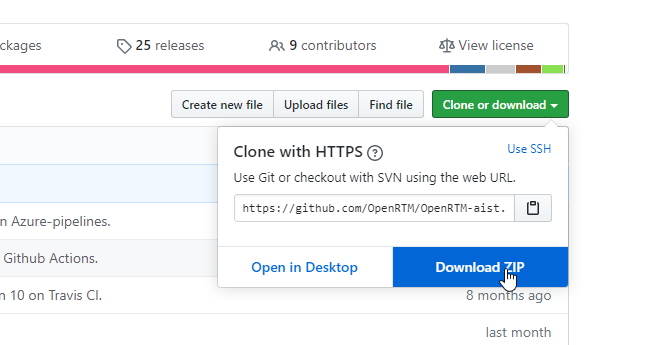
単純に人のGitHubからダウンロードして利用するだけであれば、ダウンロードしたいGitHubリポジトリの右側の緑色のボタンから「Download ZIP」を選んでZIPファイルをダウンロードしても構いませんが、今後Gitを使ってソースコードのバージョン管理を行うとともに、自分で作成したソフトウェアをGithubで公開することも考慮し、授業ではGitコマンドの使い方、GitHubの使い方についても学習します。
GitHubにアカウントを作成してください。
Windows にまず git (コマンドライン版) をインストールしてください。
また、GitのGUIフロントエンド Tourtoise Gitをインストールします。日本語化(その他の言語も)のためには言語パックも同時にインストール。
Gitの使い方については以下のページを参考にしてください。
GitHubのリポジトリへのファイルの追加や変更などを登録する手順は下記の通りです。
- GitHubのリポジトリをクローンする
- クローンしたローカルリポジトリを変更する
- 変更をコミットする
- 更新をGitHubのリポジトリにプッシュする
基本的なGitの操作として、リポジトリのクローンがあります。 クローンすると、GitHubのリポジトリをローカル環境に複製します。
TortoiseGitでは、右クリックしてTortoiseGit->クローン(複製)をクリックします。
GitHubのリポジトリのURLを入力してクローンを実行します。
クローンしたローカルリポジトリの変更の更新作業の事をコミットと言います。
TortoiseGitでは、右クリックしてTortoiseGit->コミットをクリックします。
コミットのメッセージを入力して、変更するファイルにチェックを入れた後にコミットします。
更新をリモートリポジトリに反映する作業をプッシュと言います。
TortoiseGitでは、右クリックしてTortoiseGit->プッシュをクリックします。
以下の画面でOKをクリックするとプッシュを実行しますが、この時GitHubへの認証を要求されるので実行してください。